

Welcome to Siya!
This guide will help you get started with Siya in just a few minutes. Let’s begin your journey with the most advanced AI assistant available today.
System Requirements
- macOS Requirements
- Coming Soon
macOS Desktop App
Currently available for macOS with Windows and Linux coming soon
1
Operating System
macOS 11.0 (Big Sur) or later
2
Memory
8GB RAM minimum (16GB recommended for best performance)
3
Storage
2GB available disk space
4
Internet
Required for AI features (optional for local models)
5
Processor
Apple Silicon (M1/M2/M3) or Intel processor
Installation
Download Siya
Download for macOS
Apple Silicon (M1/M2/M3) - Recommended for best performance
Intel version coming soon. The download will start immediately when you click the link.
Install the Application
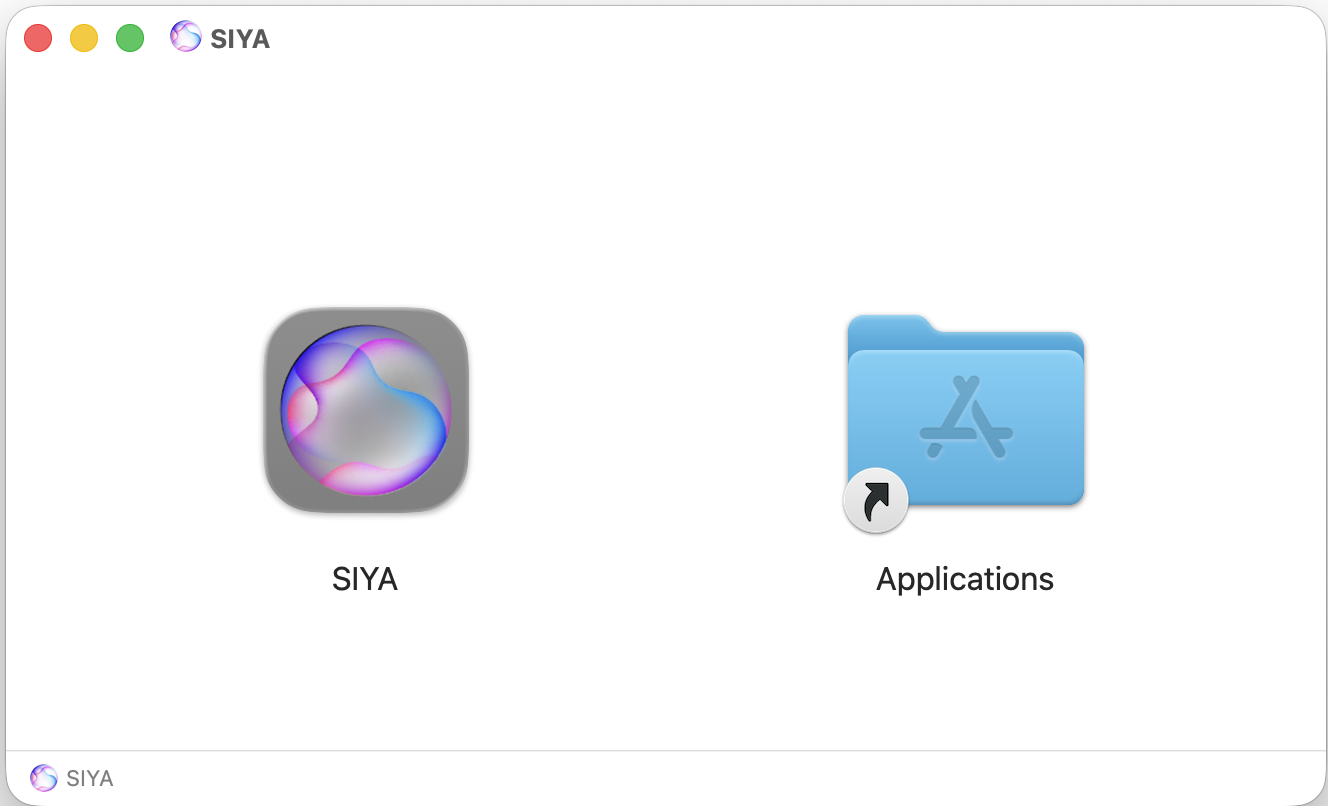
- Open the downloaded Siya.dmg file
- Drag the Siya icon to your Applications folder
- Eject the disk image
Initial Setup
Account Setup
Account Setup
1
Create Account
Create your Siya account or sign in with existing credentials
2
Choose Plan
Select your subscription plan based on your needs
3
Complete Onboarding
Follow the guided setup to configure your preferences
Preferences
Preferences
Navigate to Siya → Preferences to customize:
Theme
Choose between light and dark mode
Shortcuts
Set up keyboard shortcuts
Notifications
Configure alert preferences
Models
Select your preferred AI model
Your First Tasks
- Simple Examples
- Advanced Examples
Example 1: Simple Question
Example 2: Code Generation
Example 3: Data Analysis
Understanding the Interface
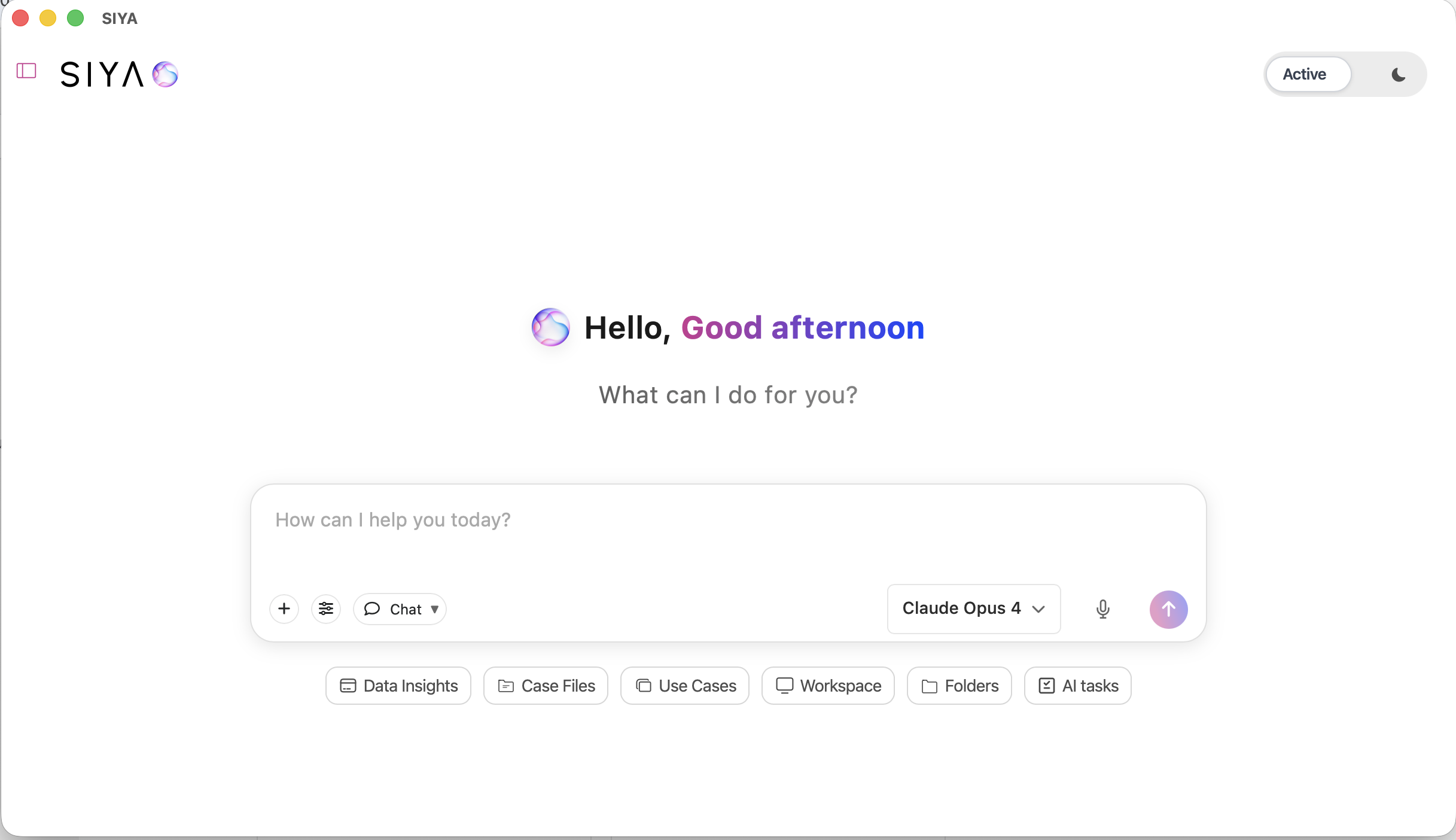
Siya's intuitive interface makes it easy to get started
Main Components
Input Area
Where you type or paste your requests. Supports multi-line input and file uploads.
Conversation View
Shows the ongoing dialogue with Siya with syntax highlighting and rich formatting.
Status Bar
Displays current activity, agent status, and progress indicators.
Toolbar
Quick access to new chat, history, settings, and help.
Execution Modes
Choose Your Working Style
Siya adapts to how you prefer to work with two distinct modes
Chat Mode (Interactive)
Perfect for:
- Exploratory questions
- Step-by-step guidance
- Iterative refinement
- Learning new concepts
- Direct tool usage
Task Mode (Autonomous)
Perfect for:
- Complex projects
- Multi-step operations
- Batch processing
- Automated workflows
- Production tasks
Working with Files
Uploading Files
- Drag and drop files into the chat window
- Or click the attachment button
- Multiple files supported
Supported Formats
- Text files (.txt, .md, .json)
- Code files (.py, .js, .java, etc.)
- Data files (.csv, .xlsx)
- Documents (.pdf, .docx)
Saving Results
- Click the save button on any response
- Use keyboard shortcut ⌘+S
- Results are saved to your designated folder
Extending Siya
MCP Integration (Easy Setup)
Automatic Configuration
Siya can automatically configure integrations for you! Just ask:
Siya will find the right MCP server, guide you through configuration, set up authentication if needed, and verify everything works.
Hooks for Automation
Create Custom Automations
Simply describe what you want and Siya will create the appropriate hook:
Best Practices
Writing Effective Prompts
Writing Effective Prompts
Be Specific
✅ “Create a Python script that reads a CSV file and generates a bar chart”
Avoid Vague
❌ “Help with Python”
Provide Context
✅ “I’m getting a TypeError in my React component when trying to map over an array”
Avoid Unclear
❌ “Fix this error”
Getting Better Results
Getting Better Results
- Break Down Complex Tasks: Let Siya create a plan first
- Use Follow-up Questions: Refine results through conversation
- Provide Sample Data: Include examples of input/output
- Specify Constraints: Mention any limitations or requirements
Common Tasks
- Development
- Data Processing
- Content Creation
- Research
Keyboard Shortcuts
Tips for Success
Getting Help
In-App Help
- Click the Help menu
- Use the ? button in toolbar
- Type “help” in chat
Documentation
Access through Help menu or visit our docs site
Support
- Email: dev@siya.com
- Response within 24 hours
What’s Next?
Continue Your Journey
Now that you’re set up, explore these resources to master Siya:
Desktop Application
Master the macOS app features
Model Selection
Choose your AI model
Execution Modes
Master chat and task modes
Agent Capabilities
Learn what each agent can do
MCP Integration
Extend Siya’s capabilities
Hooks Automation
Automate your workflows
Congratulations! You’re ready to start using Siya. Welcome to a new era of AI assistance!
Welcome to Siya - Your AI team is ready to assist!